 Biombo
Apps Made for iPhone Duo: How to Find Optimized Apps
Updated
The quickest way to find apps made for iPhone Duo is the "Made for iPhone Duo" badge on an app's App Store page. According to App Store Connect, it appears when the developer builds the app with the iOS 27.1 SDK or later and adds iPhone Duo screenshots. The badge is a good filter, but the real test takes a minute: use the app closed, open, and half folded, and see whether it changes or just stretches.
What "made for iPhone Duo" actually means
iPhone Duo has a compact outer display, often called the cover display, and a large inner display, with a hinge in the middle. Apple's design guidelines ask apps to resize cleanly between the two and to keep working in every way you hold the phone: closed, open flat, partially folded like a book, set down on a surface, or standing on its edges.
A few details make the difference between an app that was designed for the device and one that was not:
- Controls on the side. The cover display is wider and shorter than the screen of other iPhones, so the system moves toolbars and tab bars to the side to leave more height for content. Apps that use standard system bars get this for free.
- More, not just bigger, when open. On the inner display a good app shows another level of detail. Apple's own example is Mail: closed, it shows either the list of emails or one email; open, it shows both side by side.
- Respect for the fold. When the phone is partially open, the fold splits the inner display into two areas. Well-made apps keep buttons and text out of the crease, the way the split view in Notes adjusts each pane as the device folds.
Check the App Store listing first
Before you download anything, look at three things on the App Store page:
- The badge. "Made for iPhone Duo" tells you the developer built the app with the current tools and prepared it for the device.
- The screenshots. iPhone Duo has its own screenshot sizes in App Store Connect. If the listing shows the app on the cover display and on the open inner display, someone sat down and tested it there.
- The description and the update notes. Developers who added support usually say what changes when you fold the phone. Vague promises with no specifics are a hint that nothing changes.
Signs an app isn't optimized yet
You'll still run into apps that haven't been updated. These are the usual tells:
- Black bands around the status bar and the camera. Apple notes that apps built with Xcode 26 or earlier don't extend under the status bar and the camera on iPhone Duo.
- A phone layout floating in the middle of the inner display, with wide empty margins and nothing new to see.
- Buttons sitting in the fold when you bend the phone halfway, or controls that jump around every time the hinge moves.
- Bars at the top and bottom of the cover display that squeeze the content into a thin strip.
None of these make an app unusable. They just mean you're getting an iPhone app on a bigger screen, not an app designed for the one you have.
A one-minute test for any app
Try this with anything you install:
- Start with the phone closed. Are the controls on the side? Is the cover display filled sensibly?
- Open it flat. Does the app show more, like a list next to the detail, or the same thing larger?
- Fold it halfway, like a book. Does anything important end up in the crease?
- Set it on a table with the bottom half flat, like a small laptop. Does the layout use the top half for viewing?
- Stand it up like a tent. Most apps won't do anything special here, and that's fine. The ones that do are usually built for glancing from a distance.
There's more on each of these positions in iPhone Duo postures explained.
An example: Biombo, a crypto tracker built for iPhone Duo
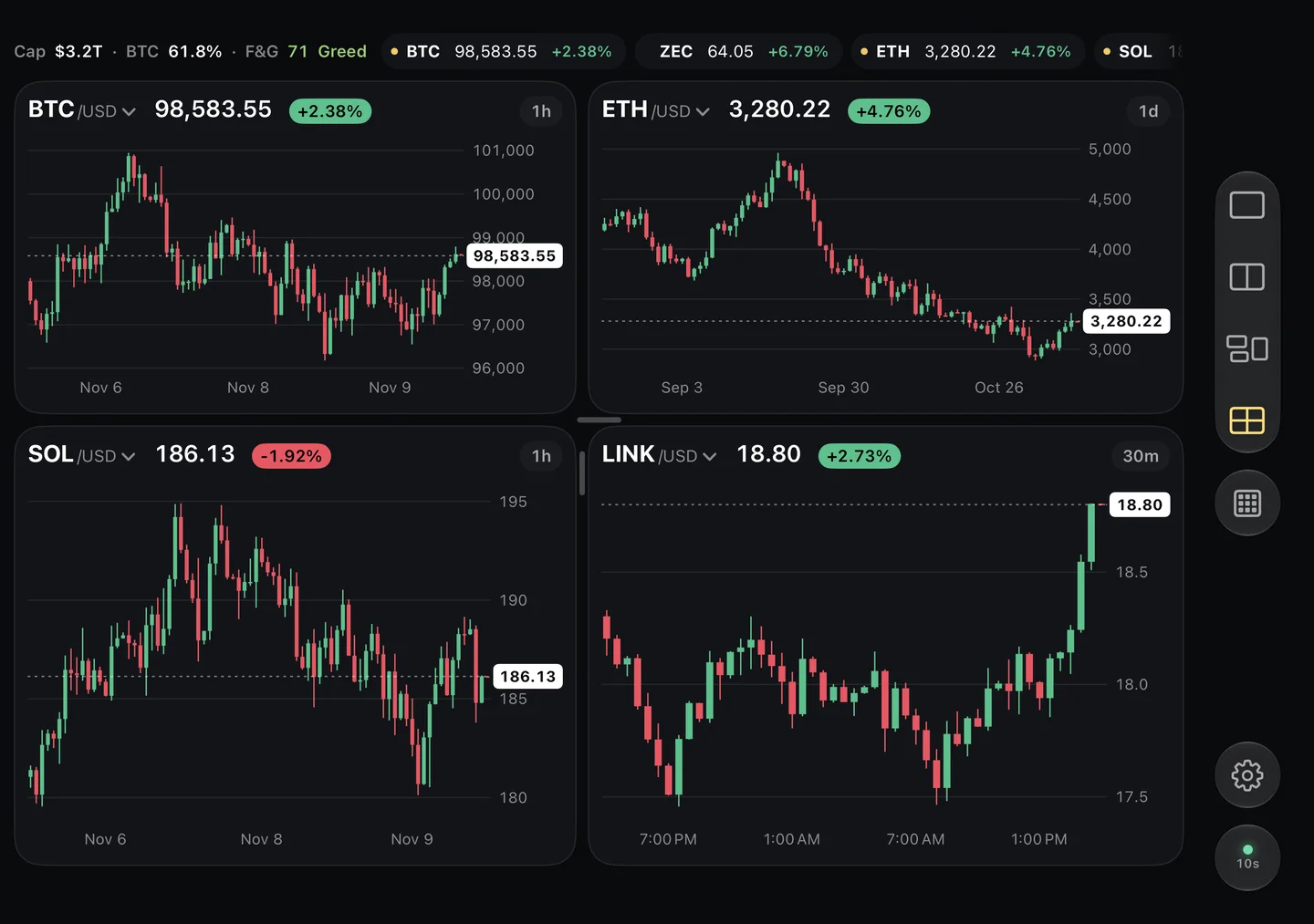
Biombo is a read-only crypto price tracker that was designed for iPhone Duo first. It's a useful example of what "optimized" can look like, because each posture gets its own layout:
- Closed: your watchlist and portfolio on the cover display.
- Open flat: one to four candlestick charts side by side, with dividers that snap to the fold, or a market map.
- Half folded, like a book or a laptop: a chart on one half, exchanges, 24-hour stats and your watchlist on the other.
- Standing like a tent: the cover display becomes a price ticker for your desk.
If you follow crypto prices, this guide goes through the whole setup.
FAQ
Do all iPhone apps work on iPhone Duo?
Apps run on it, and Apple says that apps built with standard system components that already support resizing adapt to the device with little extra work. Older apps can still look letterboxed or stretched until their developers update them.
What does the Made for iPhone Duo badge mean?
It's shown on the App Store page of apps built with the iOS 27.1 SDK or later that include iPhone Duo screenshots. It tells you the developer prepared the app for the device. It doesn't guarantee that every posture gets a special layout.
Is there an official list of apps optimized for iPhone Duo?
We don't know of a complete one. The badge on each App Store page is the most reliable signal, and the App Store's own editorial pages are worth checking.
What's the difference between optimized and compatible?
A compatible app opens and works. An optimized one resizes for both displays, moves its controls to the side on the cover display, shows more on the inner display and keeps clear of the fold.
If you want to see what an app built around the hinge feels like, you can get Biombo on the App Store.